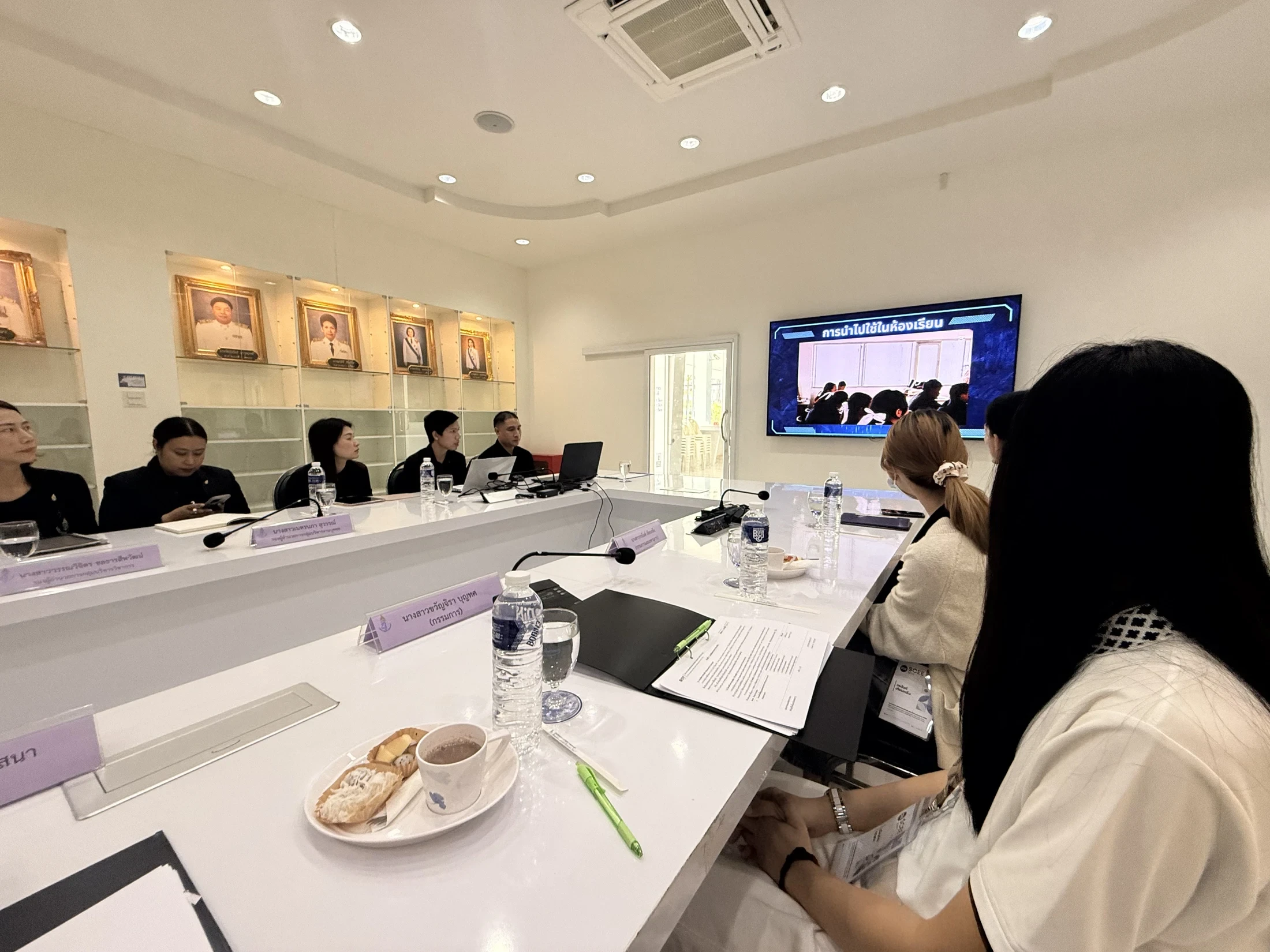



A meeting can start on time with a sharp picture and still leave remote colleagues outside the conversation. They may miss a question from the back of the room, lose track of a handwritten change, or struggle to find a moment to speak. Addressing this requires looking at the room, its equipment and the meeting process together.
This guide proposes a practical room test and a meeting routine. The examples and timings are starting points to adapt, not mandatory standards or reported product-test results.
1. Test from the least advantaged participant’s position
Ask one person to join from outside the room using their usual device and connection while colleagues hold a realistic discussion inside. Ask which speakers are hard to hear, which information is unreadable and whether the current decision is clear. Watching the display from the front of the room cannot answer these questions.
W3C describes remote-meeting accessibility as involving the platform, the content and the organiser’s use of them. [1] A caption button alone is therefore not an assurance that communication works. Test the language, names and discussion style your team uses, and ask participants beforehand about their access requirements.
2. Test a conversation, not just “Can you hear me?”
Have people at different seats take turns, speak while sharing a document and respond to a remote question. Listen for missing words, echo and quieter speakers being overwhelmed. Investigate one factor at a time: microphone position, multiple devices playing sound, or background noise. This gives the next equipment decision a clearer purpose.
A camera should help people understand who is speaking. A wide view may capture everyone but make faces too small to be useful. Decide whether each task requires a view of the speaker, a board or a physical object. If the view must change frequently, assign someone who can do that without interrupting the discussion.
| Test scenario | What a remote participant should be able to do | Evidence to keep |
|---|---|---|
| A speaker at the back contributes | Restate the point without repeated requests | Unclear moments and speaker positions |
| The team opens a real spreadsheet | Read the information needed for the decision | Files and views needing adjustment |
| Participants revise a shared plan | See changes and suggest corrections | An export that opens on another device |
| The connection fails | Resume work or use an agreed alternative | Fallback steps and the person responsible |

A room is ready when people outside it can understand, contribute and follow through.TIIS Insights
3. Put the document within the reader’s reach
Share a directly readable file before the meeting and check access from a recipient’s account. A camera pointed at a screen should not be the only way to read important content: participants need their own view for zooming, searching or using assistive tools. W3C’s accessible-presentation guidance addresses preparation of materials and participant access. [2]
When discussing a chart, identify the chart, the relevant values and the point you are making. “This bit here” leaves too much unstated. If an interactive display holds the group’s working notes, decide how the output will be saved and where colleagues will find it later.
A TIIS BOARD demonstration can include both in-room and remote participants. Bring your actual files, computers and meeting platform. A display specification does not, by itself, establish compatibility across the cameras, microphones and conferencing system used in a room.
4. Give remote participants a place in the process
Assign a facilitator to watch raised hands and online messages. If a side discussion starts in the room, bring its substance back into the main conversation. Before a decision, explicitly invite remote participants to add information or raise concerns. Silence can mean difficulty entering the discussion rather than agreement.
Try a 30-minute agenda: five minutes to read the question and decision criteria, fifteen to compare options, five to check concerns and five to record the decision, owner and follow-up date. These timings are an editorial suggestion. When evidence is missing, a useful result may be an agreed investigation with an owner, rather than a premature decision.


5. Accept the room against repeatable work
Use a short acceptance exercise that an ordinary employee can complete without the installer’s guidance: start a meeting, open a document, change presenters and save the outcome. Record where help is needed. A one-page room guide should match the actual controls, cables and equipment.
Assign responsibility for updates, fault reporting and maintenance windows. If a session is recorded, establish its purpose, access and handling under your organization’s policy before starting. When AI drafts the minutes, have a person check names, decisions and task ownership before distribution. See our practical AI trial guide.
Before calling the room ready
For the next improvement, ask a remote colleague to describe one moment that made participation difficult. That observation provides a more useful starting point than adding equipment before the problem is understood.
References and further reading
Use these primary sources to check the supporting information. Examples, tables and trial plans in this article are editorial proposals.
- W3CAccessibility of Remote Meetings (2022) ↗
Accessible platforms and content for remote and hybrid meetings.
- W3C Web Accessibility InitiativeMaking Events Accessible ↗
Preparing accessible venues, materials and participation.
Plan a demonstration around your meeting workflow
Start with the service information, then discuss a scope suited to your setting, users and goals.
Explore the related service